DocumentationConfiguring feesHow the amount is calculated
How the amount is calculated
The plugin adds the fixed amount and the percentage together, clamps that with the minimum and maximum, then takes tax out if your amount included it. It does those five steps in that sequence every time.
The order it happens in
A payment fee is the fixed amount plus the percentage, clamped by the minimum and maximum, with tax taken out if your amount included it. Every fee this plugin charges goes through those steps in that order:
- Start with the fixed amount. If the rule has no percentage, this is already the answer.
- Add the percentage. The percentage is taken from a calculation base: the cart subtotal, plus the cart’s tax unless you untick that box. See what the percentage is of.
- Apply the minimum and maximum. These clamp the result, and they only exist for rules that have a percentage. See minimum and maximum.
- Take tax off, if the amount you typed included it. A WooCommerce fee is always stored excluding tax, and WooCommerce adds the tax back on top when it displays the order. See tax.
- Round to WooCommerce’s working precision, which comes from the store’s own decimal setting. See rounding.
A fee that works out to zero is dropped before the caps are applied, so nothing is added to the order — no empty line, no zero row on the invoice. A minimum never turns a zero into a charge.
- 1Start with the fixed amount$0.50 on the rule$0.50
- 2Add the percentage2.5 % of $5,000 = $125.00$125.50
- 3Clamp with the minimum and maximumover the $8 maximum$8.00
- 4Take tax off, if your amount included itthis amount excludes tax$8.00
- 5Round to the store’s precisiontwo decimals here$8.00
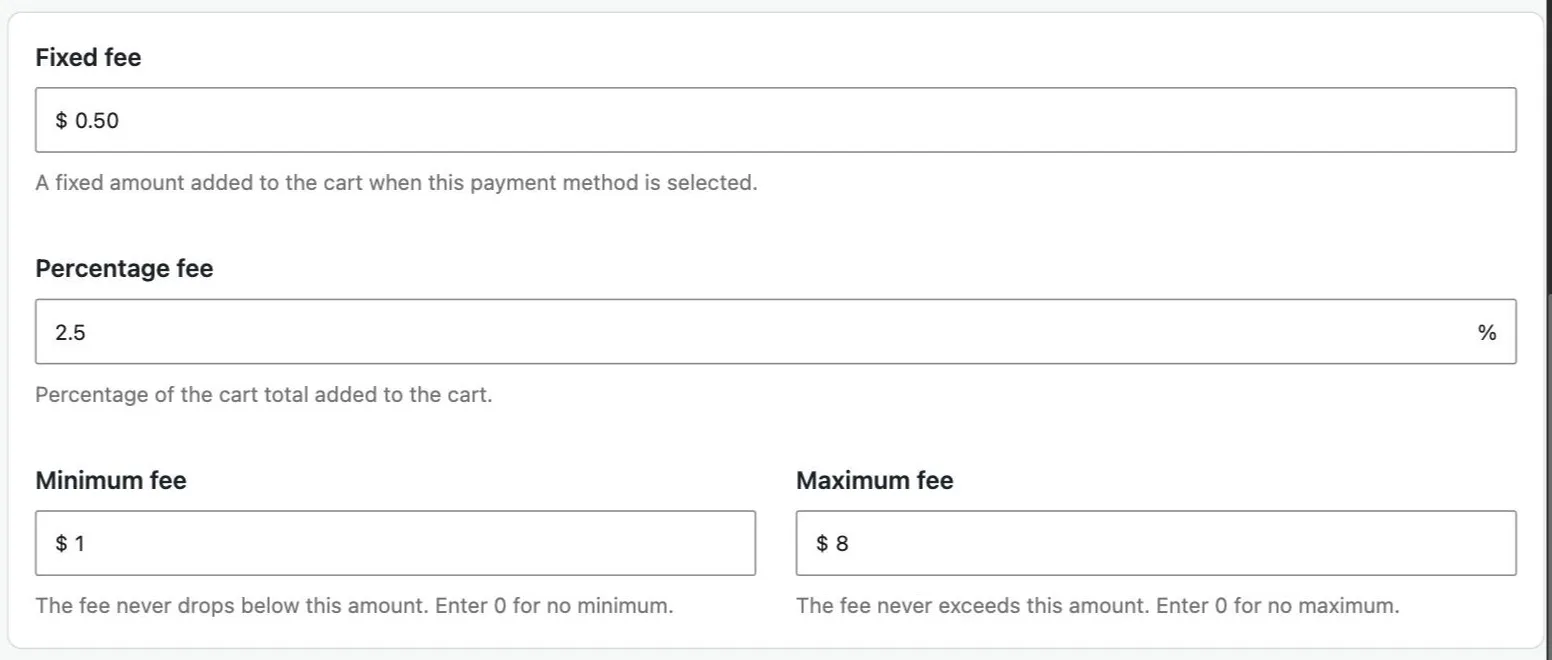
Steps 1 to 3 are these four fields. This is the free version; Pro adds conditions and more than one fee per method around them.
The minimum and maximum fields appear only once you enter a percentage. A flat fee cannot vary, so there is nothing to clamp — which is exactly what the caps section says.
Worked examples
Three rules on the same $110 basket, tax aside:
| Rule | Sum | Fee |
|---|---|---|
| 2.5% + $0.50, min $1, max $8 | $0.50 + (2.5% of $110 = $2.75) | $3.25 |
| 1.4% + $0.25, max $8 | $0.25 + (1.4% of $110 = $1.54) | $1.79 |
| −2% | −2% of $110 | −$2.20 |
The third is a discount. A negative amount is charged as a negative fee, which is how you reward the payment method that costs you least.
The same first rule on two other baskets, to show the caps doing something:
| Basket | Sum | Clamped to |
|---|---|---|
| $10 | $0.50 + $0.25 = $0.75 | $1.00 — the minimum |
| $5,000 | $0.50 + $125.00 = $125.50 | $8.00 — the maximum |
What the percentage is of
The percentage starts from the cart subtotal excluding tax, and four checkboxes change it from there. One of them, Taxes, is ticked out of the box — so a new fee’s base is the subtotal plus the cart’s tax.
Each checkbox sits on the fee itself:
- Shipping — adds the shipping total.
- Fees — adds other fee lines on the order. No effect at checkout: WooCommerce has not totalled any fees yet when this plugin calculates.
- Coupons — subtracts the discounts, so the percentage is taken from what the customer actually pays rather than from the pre-discount subtotal.
- Taxes — adds the cart tax. If shipping is included too, its tax comes with it.

The four additions, on the payment method itself. Everything unticked means the plain subtotal.
The base is only ever used for the percentage part. The fixed amount is added whatever the base is, and a rule with no percentage never computes one.
Minimum and maximum
The minimum and maximum clamp the fee after the percentage has been added and before any tax is worked out.
Two things about them are worth knowing, because neither is obvious:
Two rules about the caps
- They only apply to a rule that has a percentage. A fixed-only fee is never clamped — there is nothing for a cap to protect you from, since the amount cannot vary.
- They are bounds, not magnitudes. A minimum of $1 on a −2% discount does not mean “at least $1 off”. It means the fee may not go below $1 — so the discount turns into a $1 charge. To bound a discount, both numbers have to be negative: the maximum sets the shallowest, the minimum the deepest.
Tax
Three settings decide what tax does to a fee.
Is the fee taxable? If not, the amount is charged as it stands and no tax line appears for it.
Does the amount you typed include tax? WooCommerce stores every fee excluding tax and adds the tax back when it renders the order, so if you say your amount is tax-inclusive the plugin divides the tax out before handing the fee over. A tax-inclusive $3.25 at 21% is stored as $2.69, and the customer still sees $3.25.
Which tax class? Any class the store has, or inherit, which takes the class of the cart item with the highest tax rate — so a basket mixing rates taxes the fee at the highest of them. An empty basket falls back to the standard class.
Customers marked VAT-exempt are never charged tax on a fee, whatever these three say.
Rounding and zero
The finished amount is rounded to WooCommerce’s own working precision: your Number of decimals setting plus two, never fewer than six places. That is what WooCommerce rounds every other line to, so the fee introduces no rounding difference of its own. The customer sees it formatted to your store’s decimals, like every other line.
If the result is exactly zero, no fee line is created. That is why a rule that comes out at zero on small baskets leaves those orders clean rather than carrying a $0.00 row.
Every step above has a filter on it if you need to change the number programmatically — the amount, the percentage, the fixed part and both caps are each filterable. They are listed in the developer filter reference.
A fee coming out at a number you did not expect? Send me the rule and the basket and I will tell you which step did it.
Get in touch