DocumentationProDisplay controls
Display controlsPro
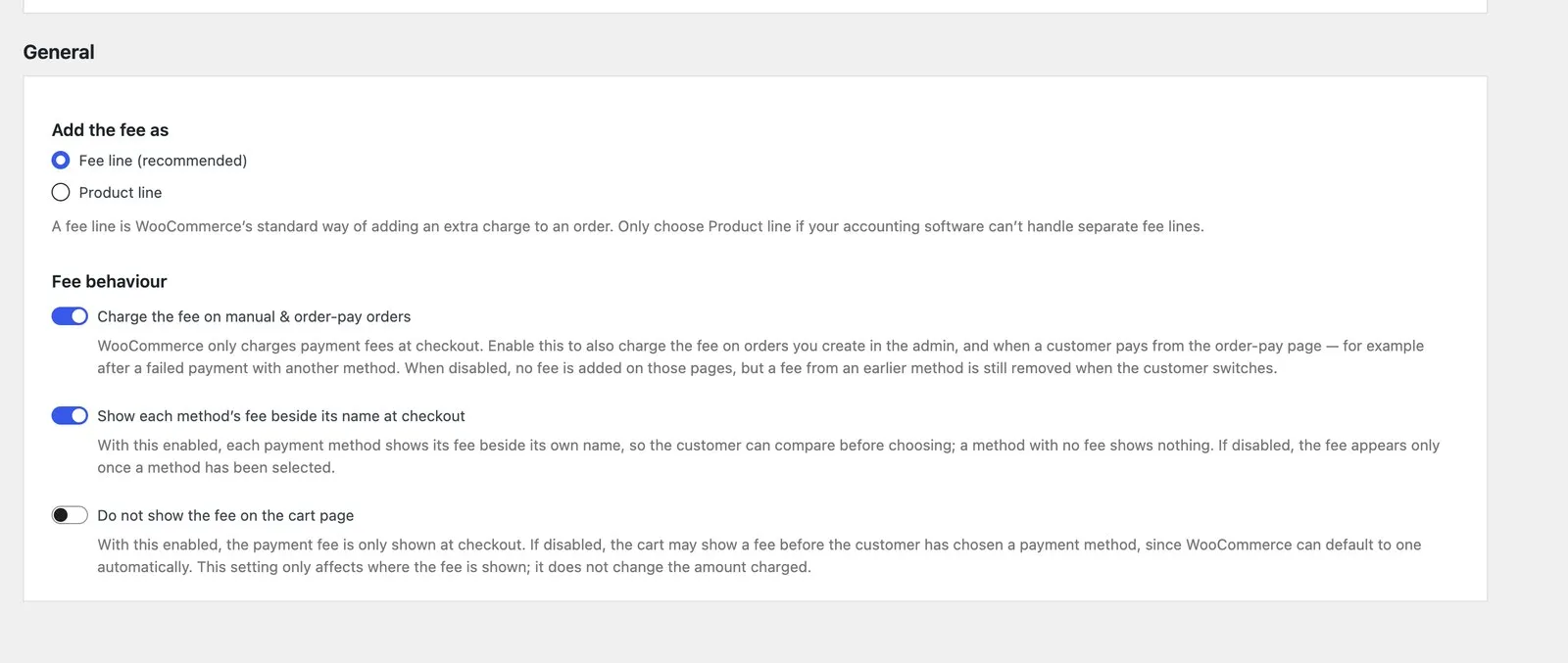
Pro adds two settings that decide where the customer sees the fee: hide it on the cart page, where WooCommerce can only guess the method, and show each method's fee beside its name at checkout. Neither changes the amount charged.
Why the cart shows a fee before the customer has chosen
The cart page does not know how the customer will pay. WooCommerce picks a method anyway: the one chosen last this session, or the store’s default gateway, or the first enabled one. So the cart shows a fee that changes once the customer actually picks a method at checkout.
The charge is always right. The number on the cart is the guess, and it is what customers write to you about.
Hide on the cart
Do not show the fee on the cart page — store-wide, under General settings. The cart never lists a payment fee, chosen method or not; the fee appears at checkout, where the method is chosen. The amount charged never changes.
Show beside each method
Show the fee beside this payment method’s name at checkout — per method, under Display. The fee amount rides beside the method’s own label, in brackets, for every method that has one: Cash on delivery ($3.25), Bank transfer (-$2.20). The customer compares all of them before picking one, instead of discovering the charge after.
A zero fee shows nothing. A conditional fee shows the amount the rules would charge on this cart, so the hint and the eventual charge agree.
The two go together: hide the preview on the cart, where it is a guess, and show the real figures at checkout, where they are not.
On the order-pay page
The same hint appears on the pay-for-order page when off-checkout fees are on, and there the order total follows the selected method too, so the amount on the Pay button is the amount charged.
Without Pro
Two free ways to soften the cart problem: order your payment methods in WooCommerce so a fee-free one comes first (that is the one the cart previews), and give the fee a title that says what it is for, so a shopper who sees it understands it. Neither removes the preview.
Both controls are Pro, and both are the kind of thing you switch on once and forget. The trial takes no card.
See pricing